FAQs

What is MedTime?
MedTime is an iPhone app for tracking medications, appointments, health records, and shared care by profile so each person or pet stays organized separately.
How do reminders work?
Create a medication, attach reminder times, and MedTime keeps the due, overdue, completed, and recent-history states easy to scan throughout the day.
Can I manage more than one person or pet?
Yes. Profiles let you manage multiple people or pets without mixing their reminders, appointments, or records together.
How does sharing work?
The owner sends an iCloud-based invite and chooses whether the recipient has view-only or edit access.
What if iCloud is unavailable?
Your information remains available on the device. Sync, sharing, and purchase restoration resume once Apple services are available again.
How do I restore purchases?
Open MedTime settings and use Restore purchases while signed into the Apple ID used for the MedTime subscription.
I accidentally deleted something. How do I get it back?
Check the Recently Deleted area in the app. Records remain recoverable there for a limited period before permanent removal.
How can I export my data?
MedTime includes export and safety snapshot options so you can save a portable copy when you need a backup or a record review.
How is my data protected?
MedTime stores records on-device and relies on Apple services like CloudKit and StoreKit for sync, sharing, and purchases where those features are enabled.

App Guide

Start with the questions above, then use these screenshots as a quick guide to the main MedTime flows, gestures, sharing tools, and backup areas.

Use Reminders for the daily checklist

The reminders screen keeps due, overdue, and completed medications visible for the currently selected profile.
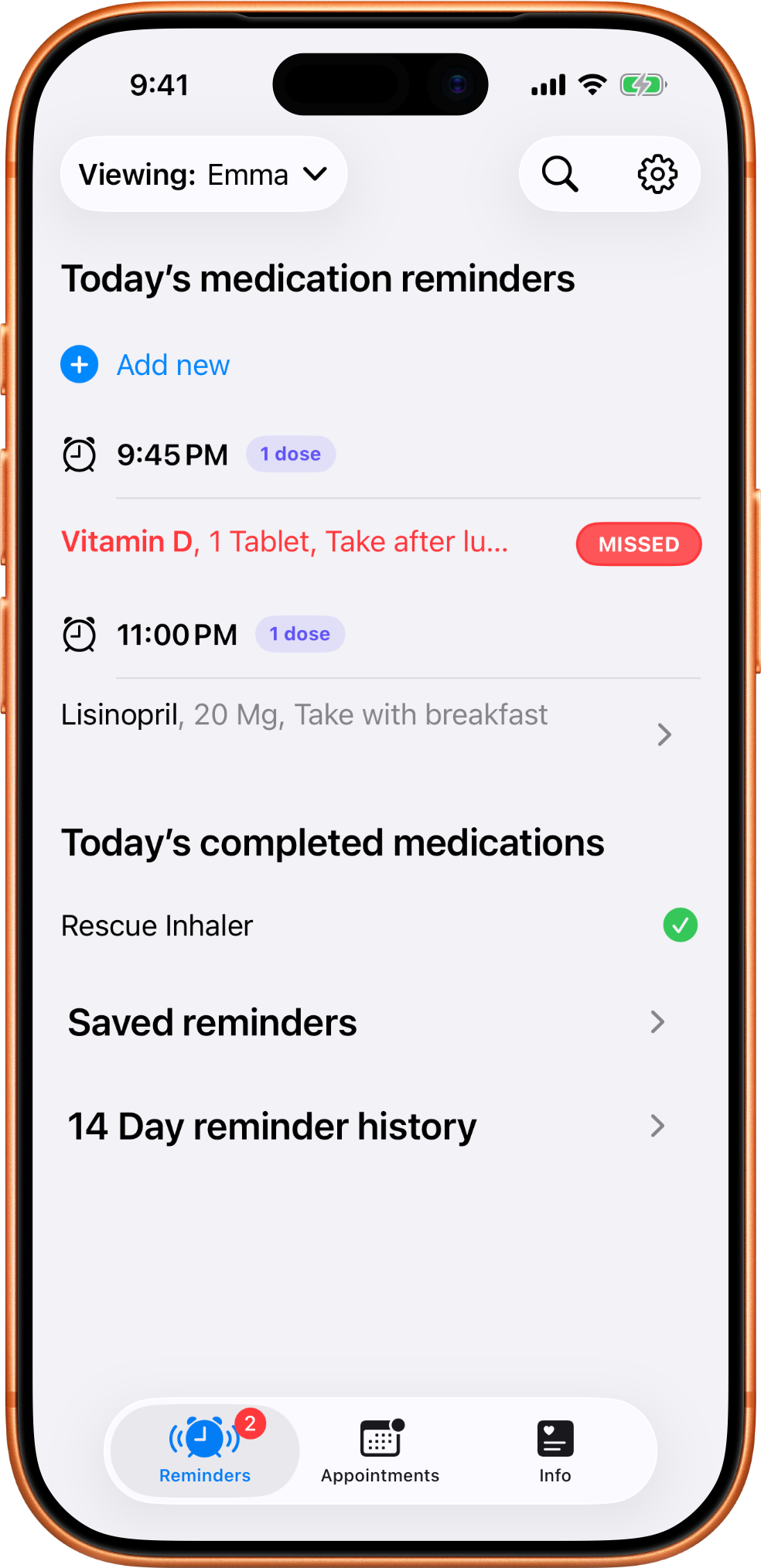
MedTime reminders screen showing today's medications, one missed reminder, and completed medications for the selected profile.

Swipe a reminder to log it quickly

The quick action gesture helps you mark a dose as taken or skipped without opening extra screens.
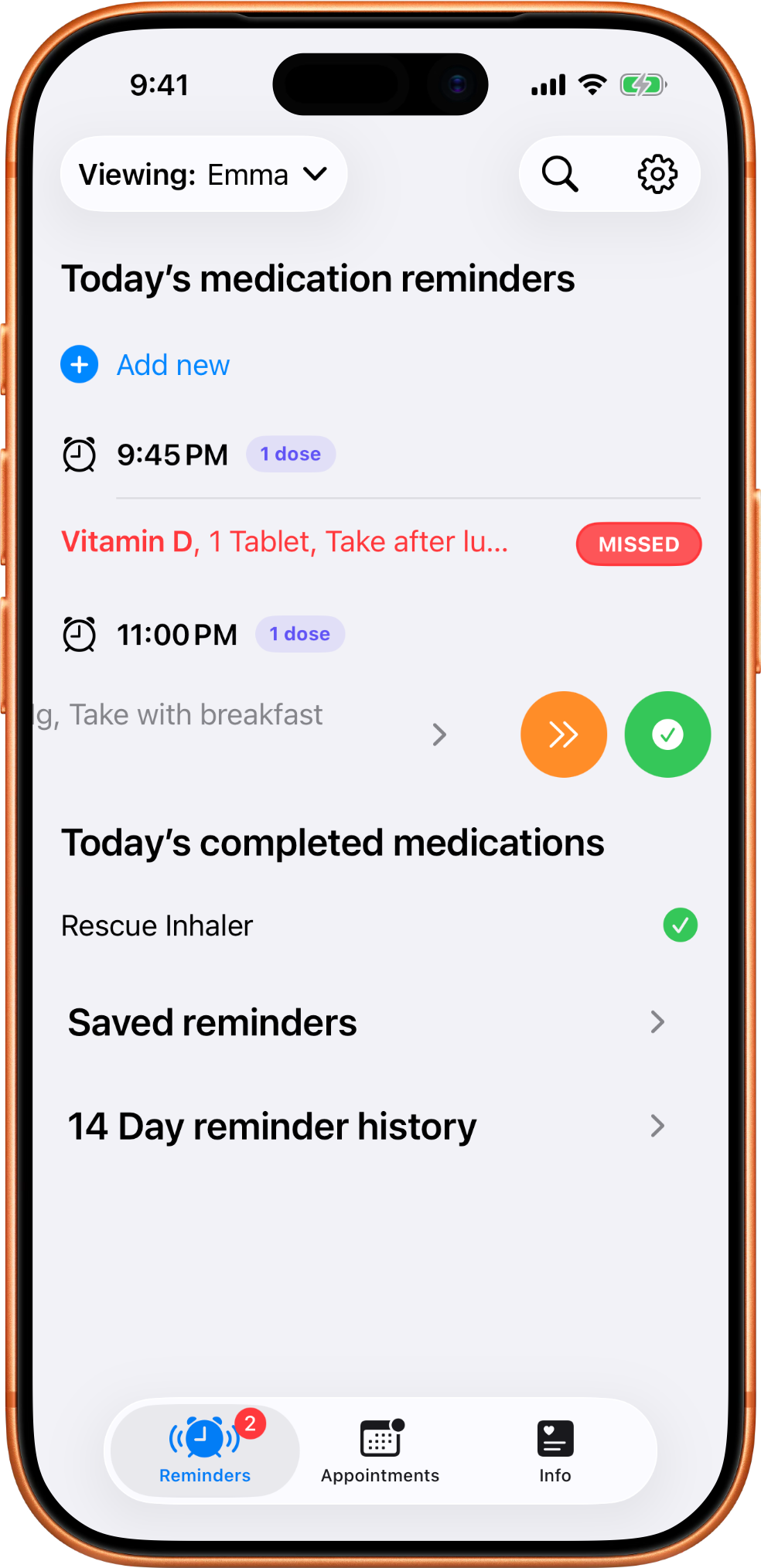
MedTime reminder row revealed with swipe actions for quickly marking a dose as taken or skipped.

Review recent reminder history

The 14 day history helps a person or caregiver quickly spot missed medications and mostly-on-track patterns.
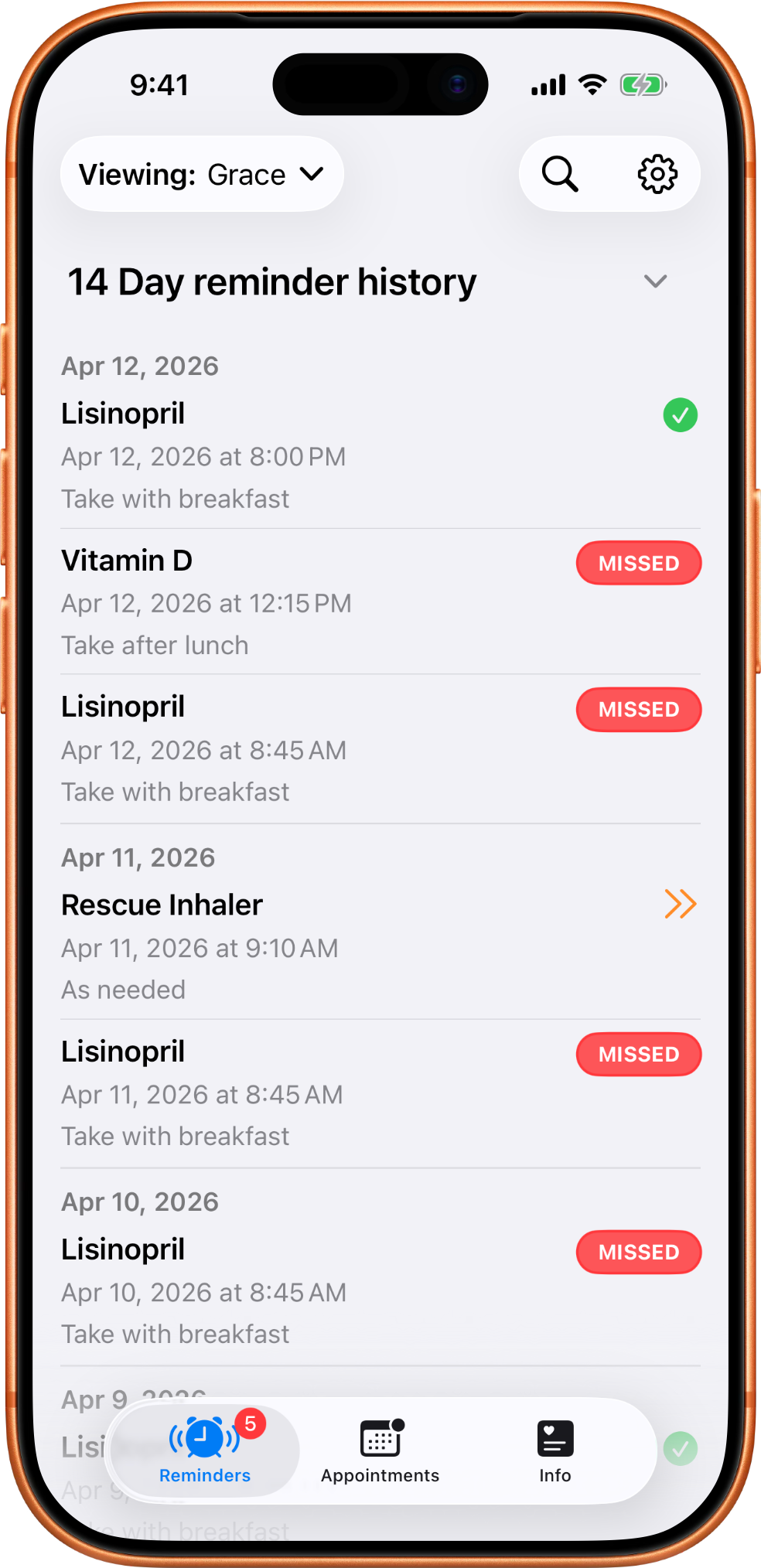
MedTime 14 day reminder history screen with mostly taken medications and a few missed doses for a sample profile.

Create a reminder from a medication

New reminders attach to saved medications and can be configured with notification and critical-alert options.
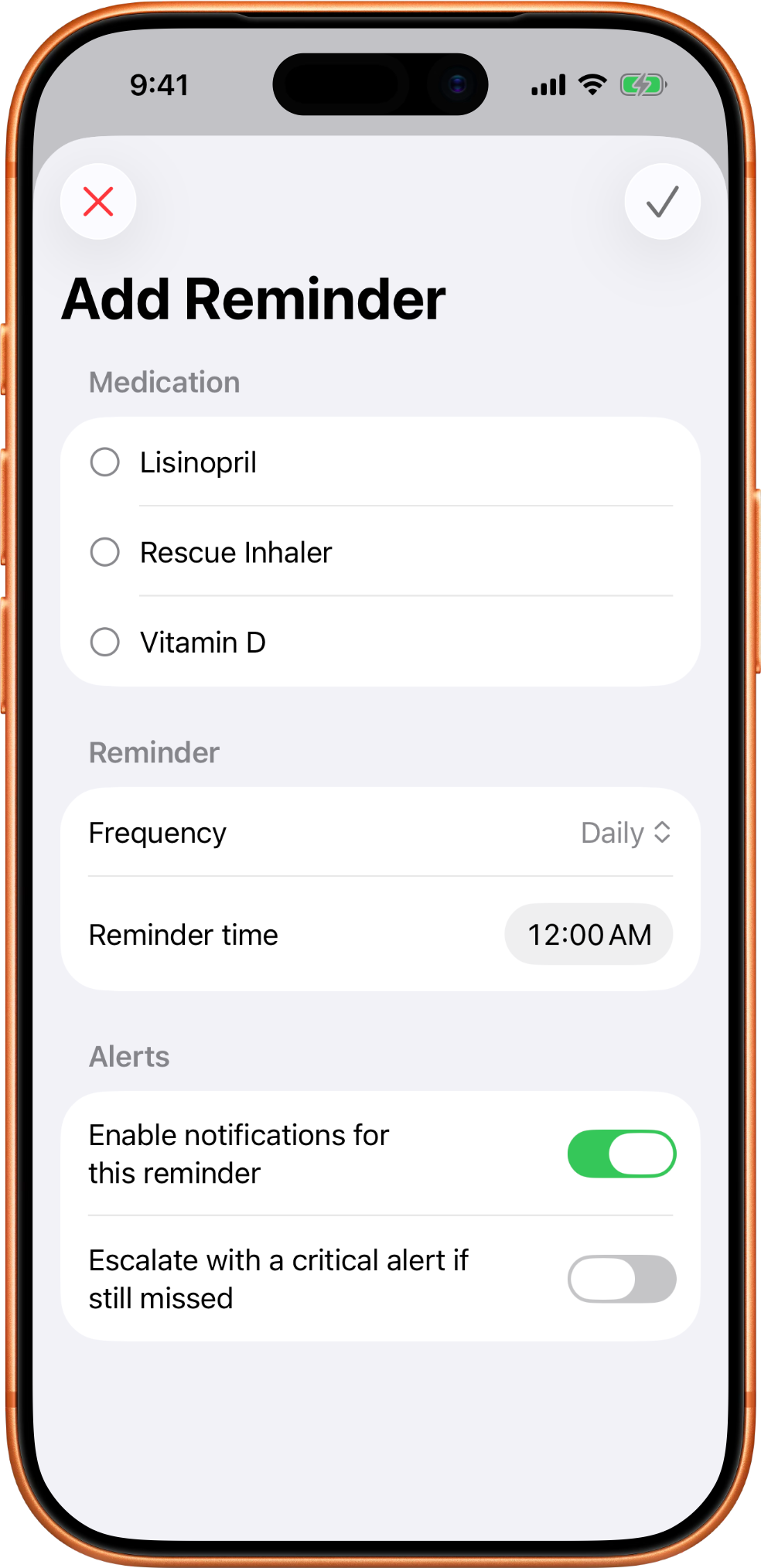
MedTime add reminder screen showing medication selection, frequency, reminder time, notifications, and critical alert options.

Add a medication record first

Medication records hold the details that make reminders useful: name, dose, instructions, doctors, pharmacies, insurance, and notes.
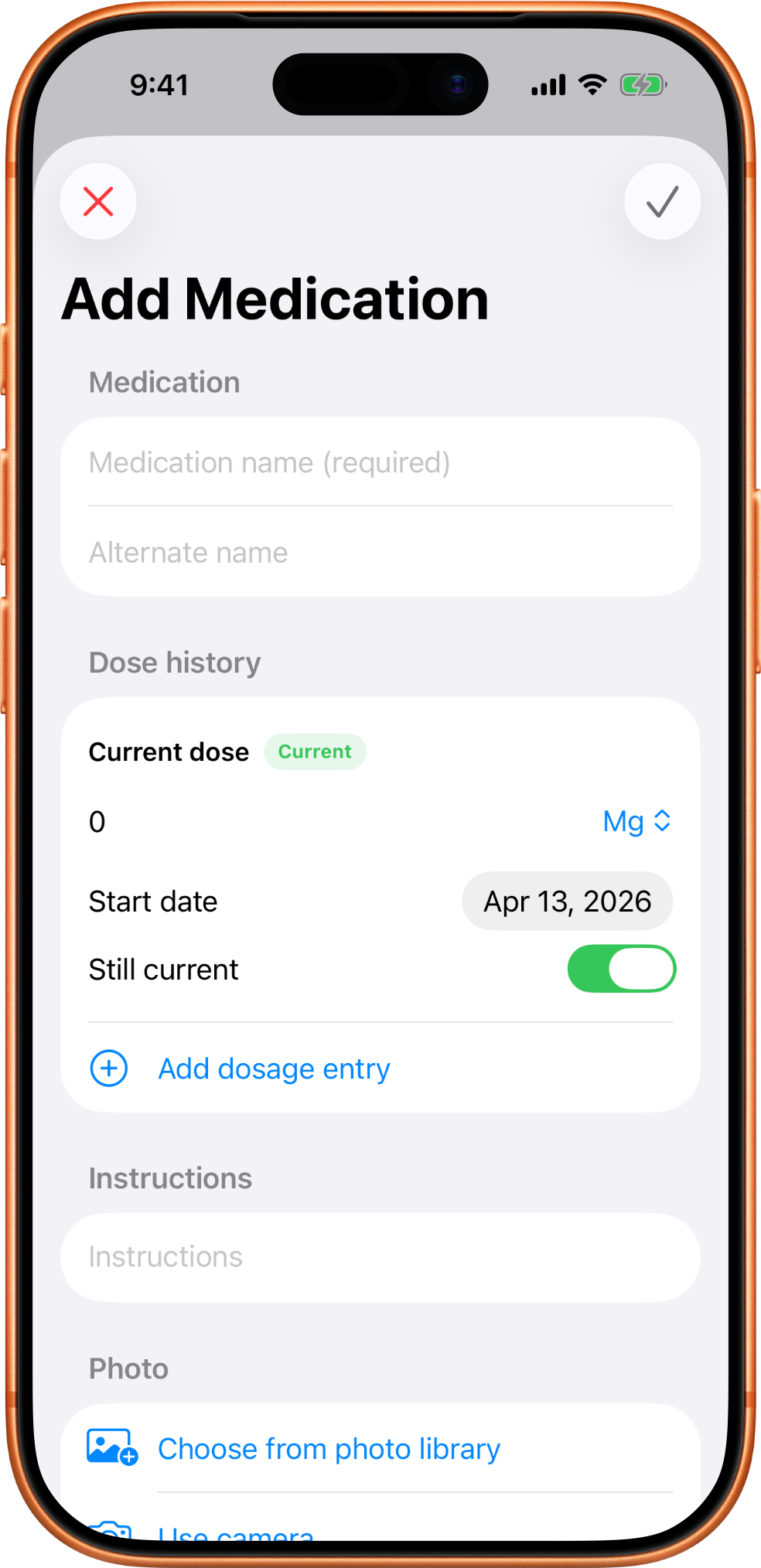
MedTime add medication screen with fields for medication details, dose, instructions, purpose, doctor, pharmacy, insurance, and notes.

Track dose changes over time

Expanded medication details show past dose ranges and the current dose without requiring a separate chart.
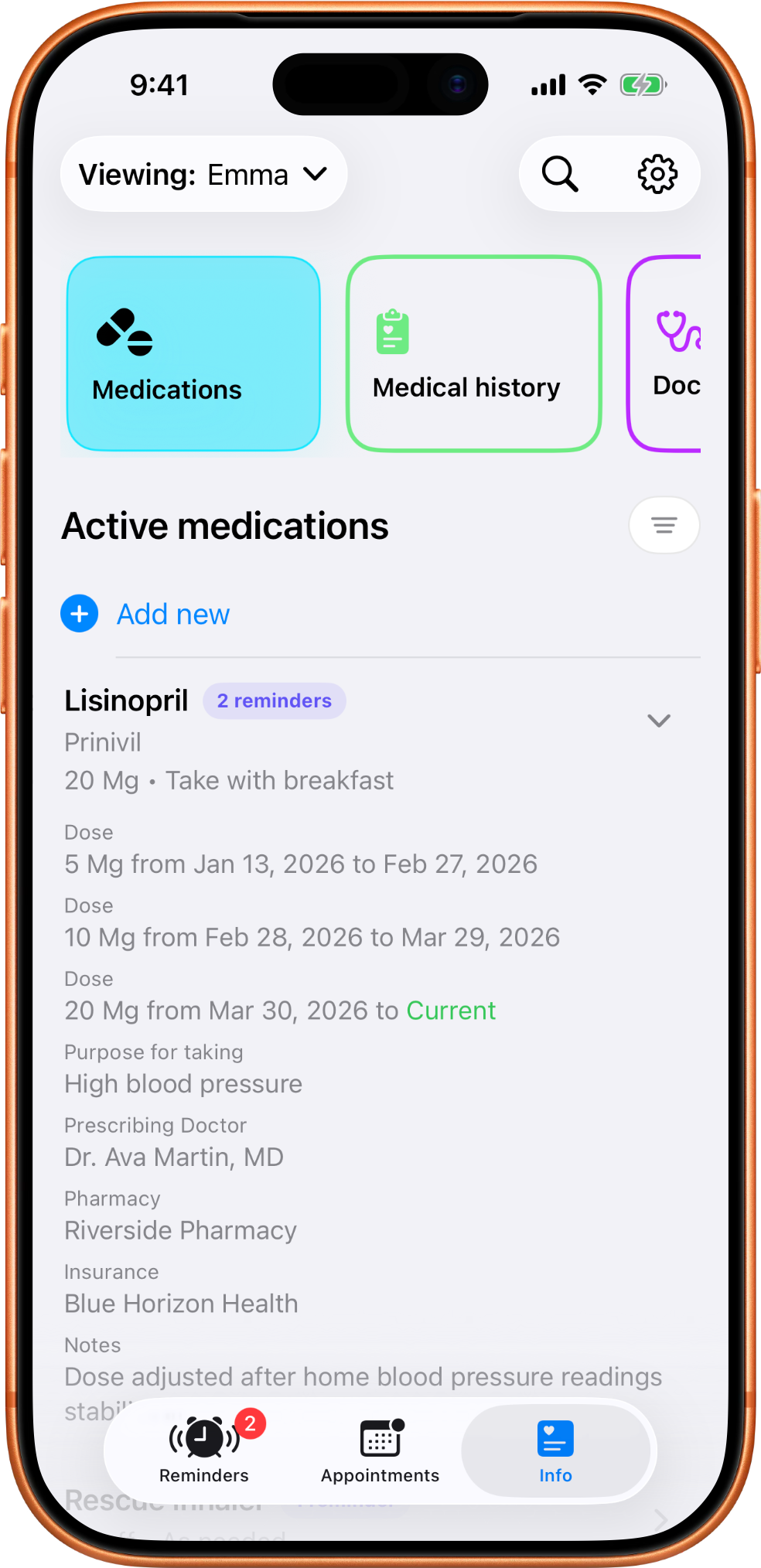
MedTime medication screen expanded to show dose history, current dose, purpose, prescribing doctor, pharmacy, insurance, and notes.

Swipe right to edit or delete

Saved list rows support quick actions so edits stay close to the record you are reviewing.
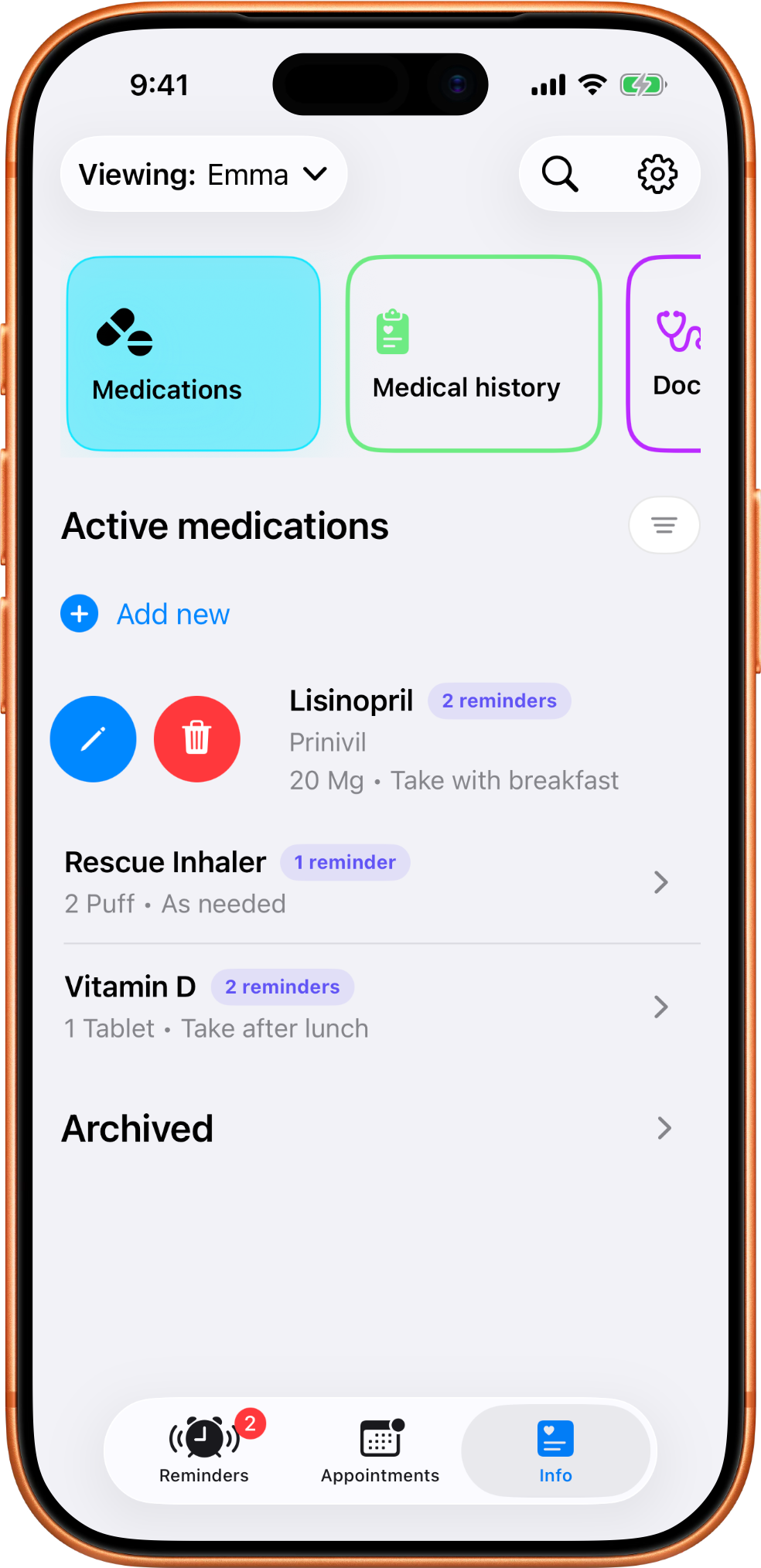
MedTime medication list with a swipe-right action exposing edit and delete controls.

Swipe left to archive

Archiving removes a medication from the active list while keeping useful history available.
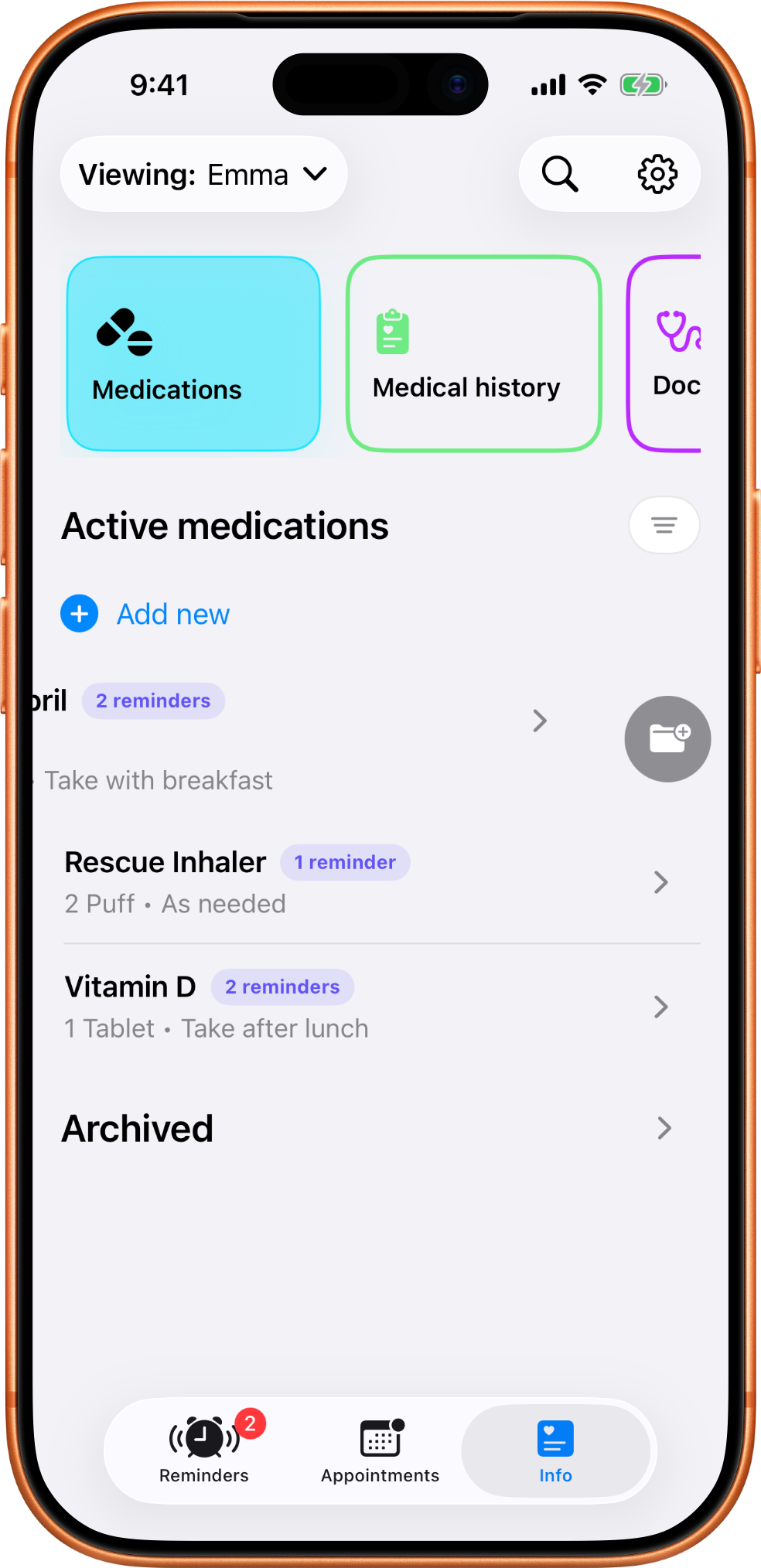
MedTime medication list with a swipe-left action exposing an archive control.

Choose the profile you want to view

Profiles keep each person or pet separate so reminders, appointments, and medical details stay attached to the right one.
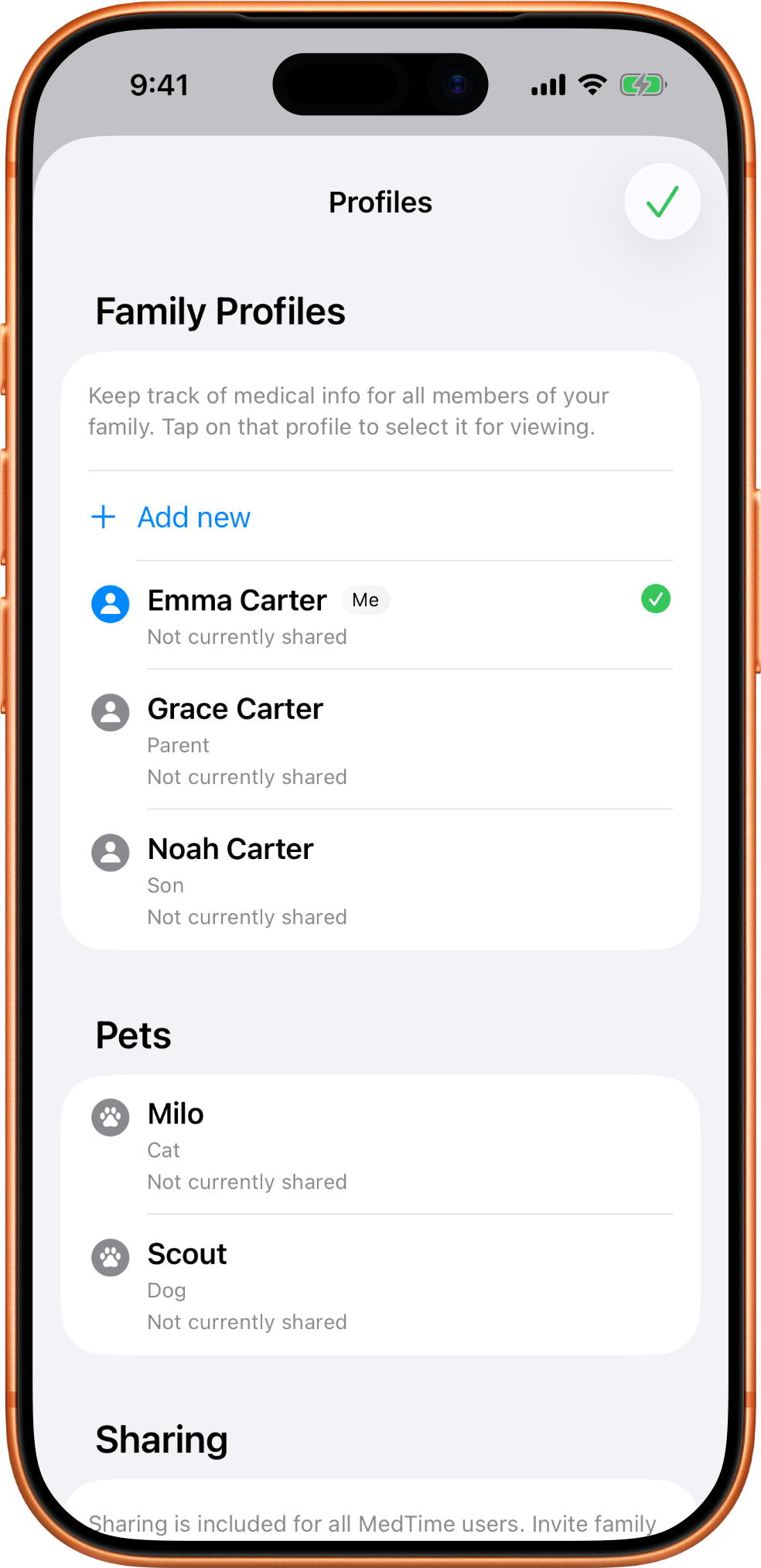
MedTime profiles screen listing multiple family members and pets that can each have separate care records.

Swipe a profile for edit and delete

Profile rows also support quick actions when you need to update or remove an old profile.
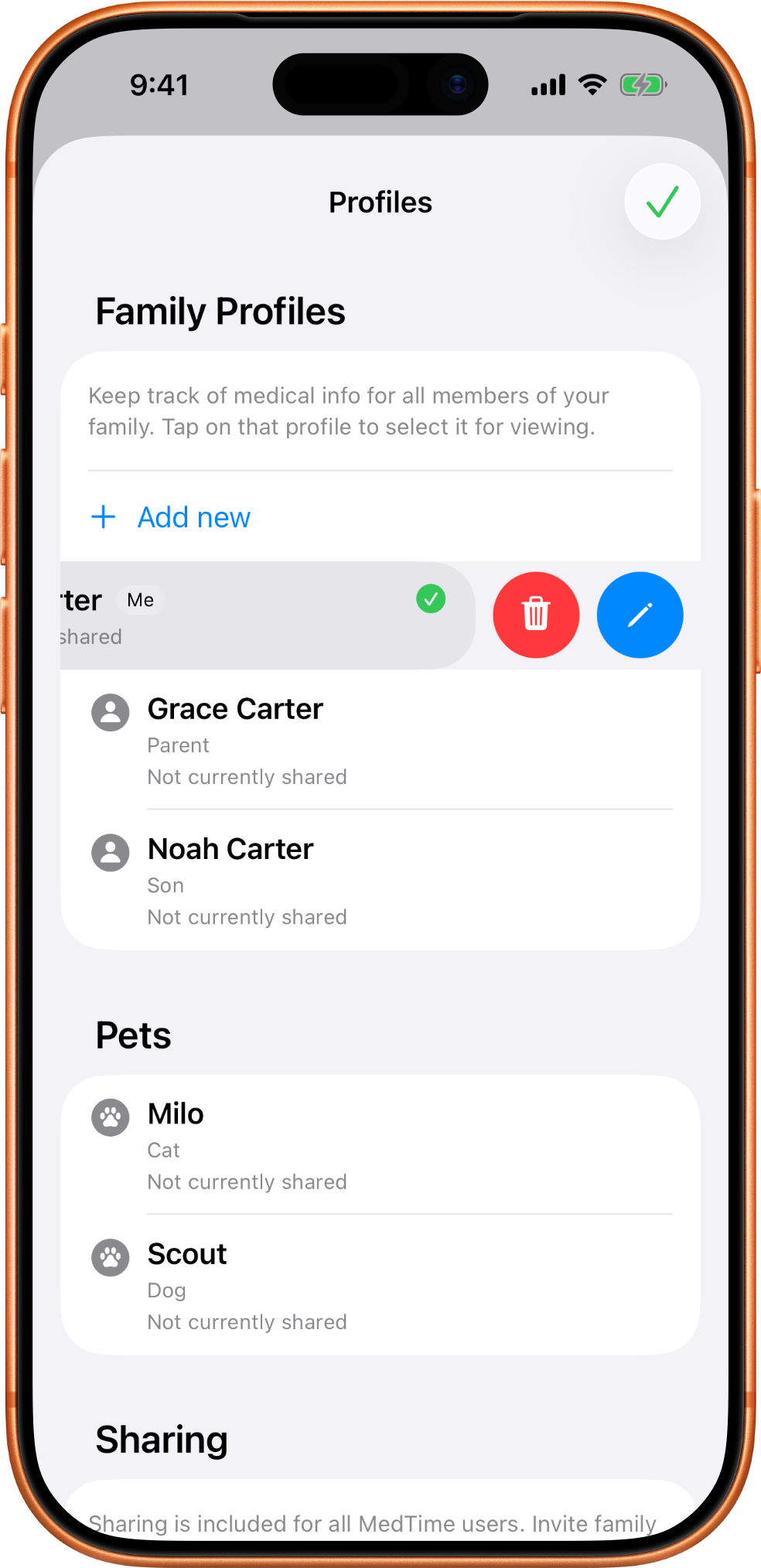
MedTime profiles screen with a profile row swiped to reveal edit and delete actions.

Create a profile share

The profile owner can invite another MedTime user to a selected profile.
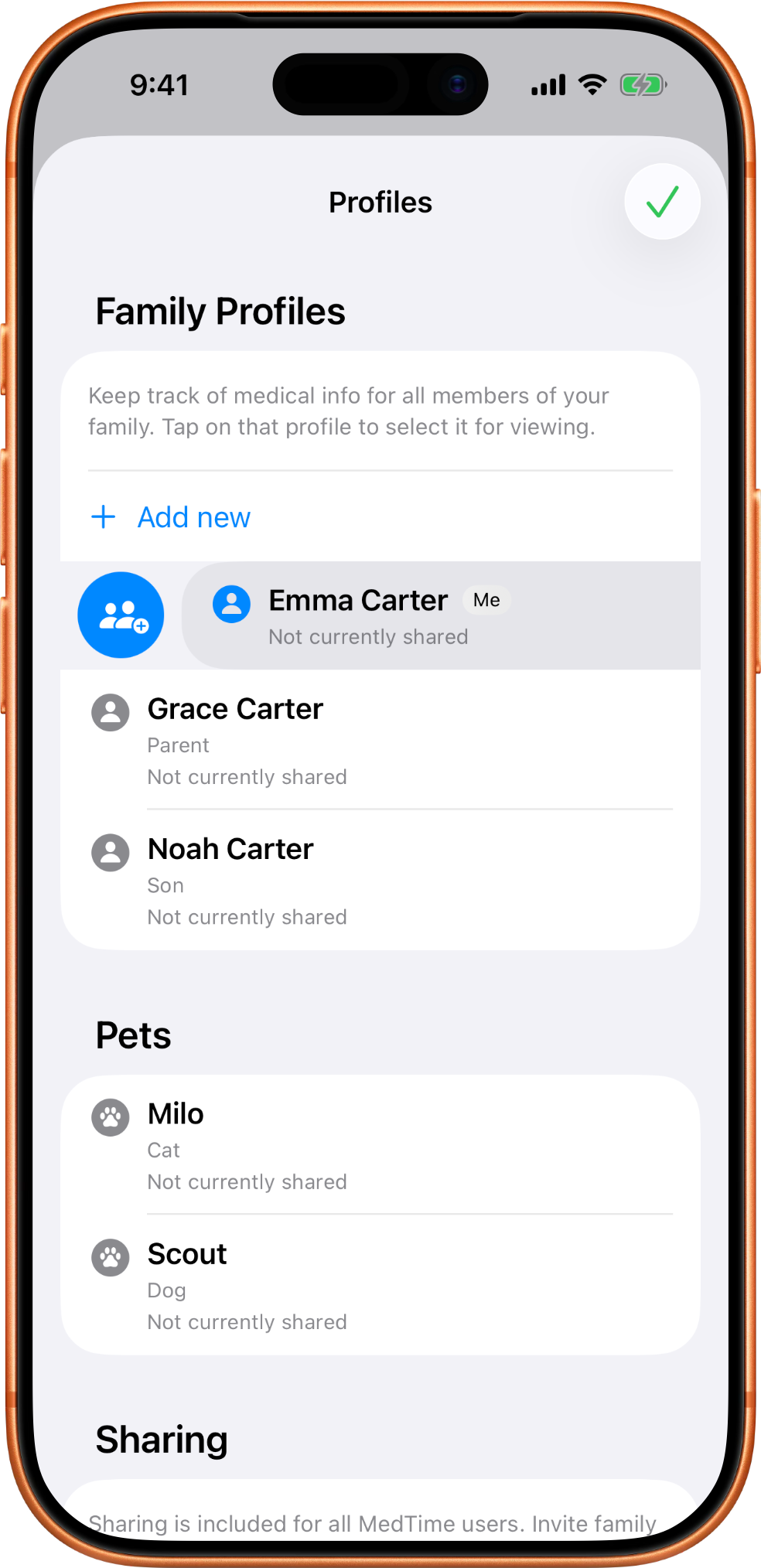
MedTime create profile share screen for entering a recipient email address.

Pick the right access level first

View-only is best when someone only needs visibility. Edit access is for a recipient who also needs to make changes.
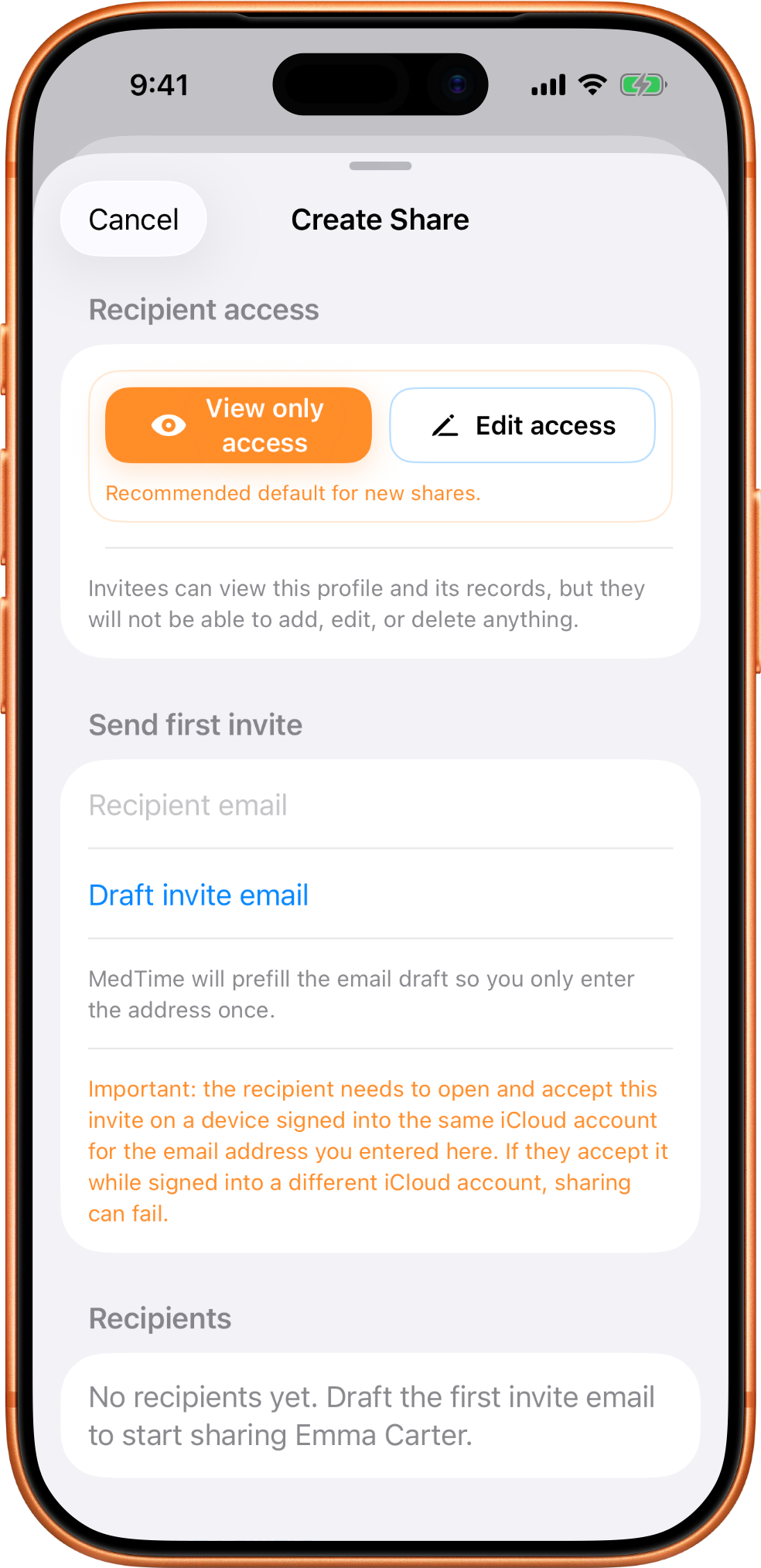
MedTime create-share screen showing the choice between view-only access and edit access for a recipient.

Stop sharing when access should end

Manage sharing from the profile and stop access when a recipient no longer needs the record.
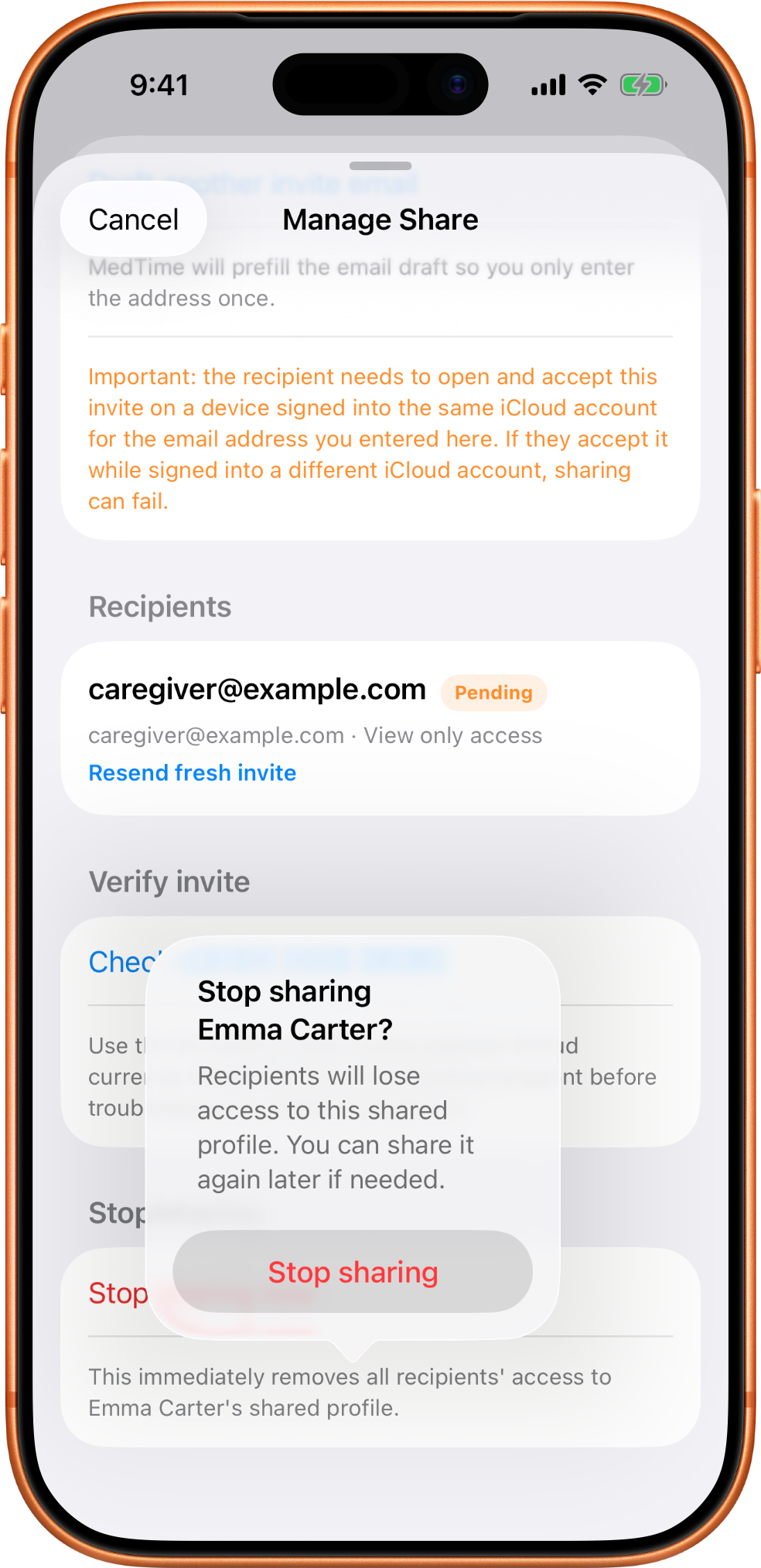
MedTime stop sharing screen showing controls for ending access to a shared profile.

Keep upcoming appointments easy to scan

Appointments stays focused on what is next and what details matter before you head out the door.
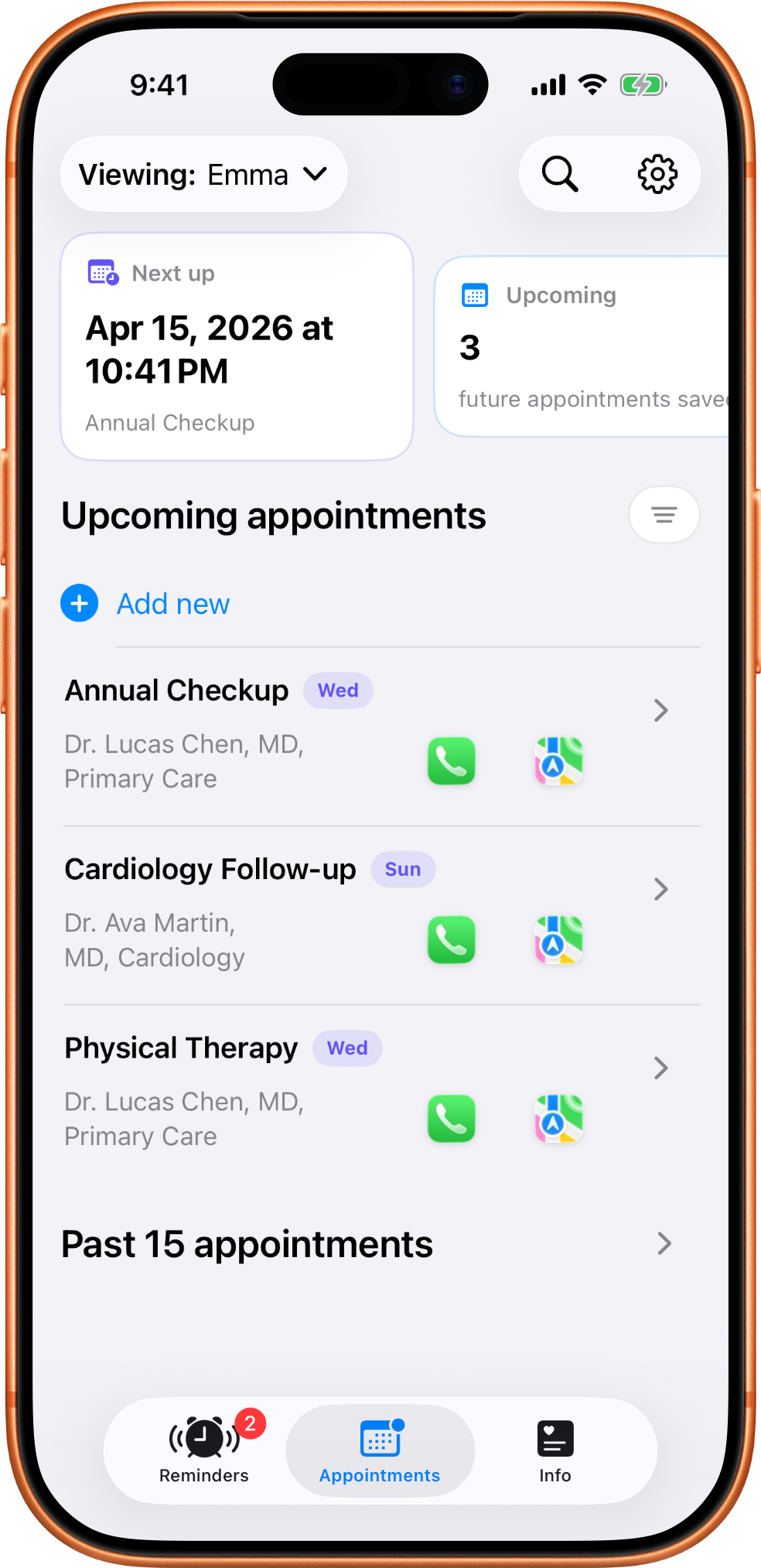
MedTime appointments screen showing upcoming appointments with doctor details, call shortcuts, and map shortcuts.

Store medical history and attached records

Medical history keeps past events, ongoing issues, and attached PDFs together by profile.
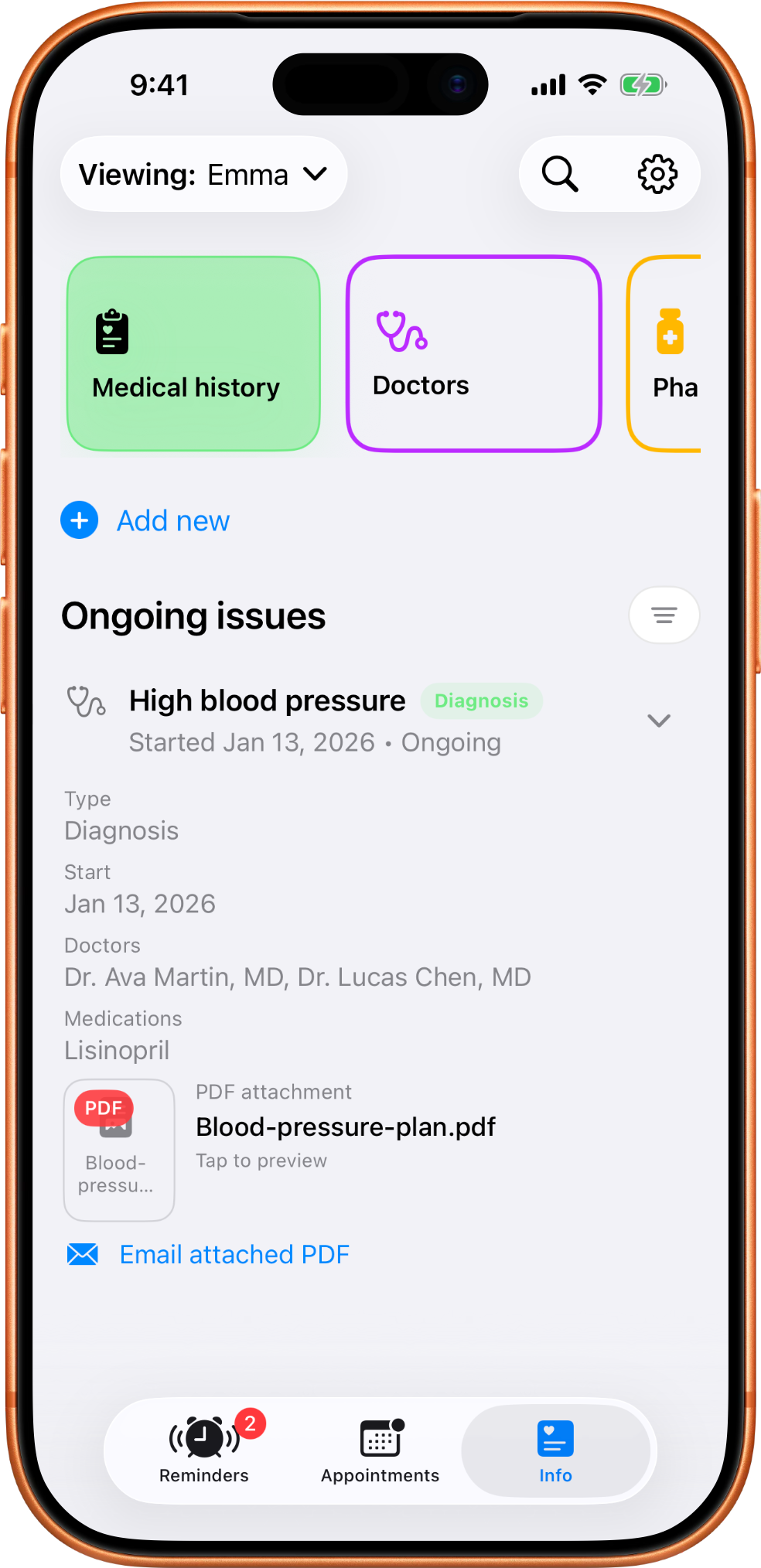
MedTime medical history screen expanded to show a diagnosis, doctor, medications, and a PDF attachment.

Save doctor details with context

Provider records make it easier to keep specialty, contact details, and related medications together.
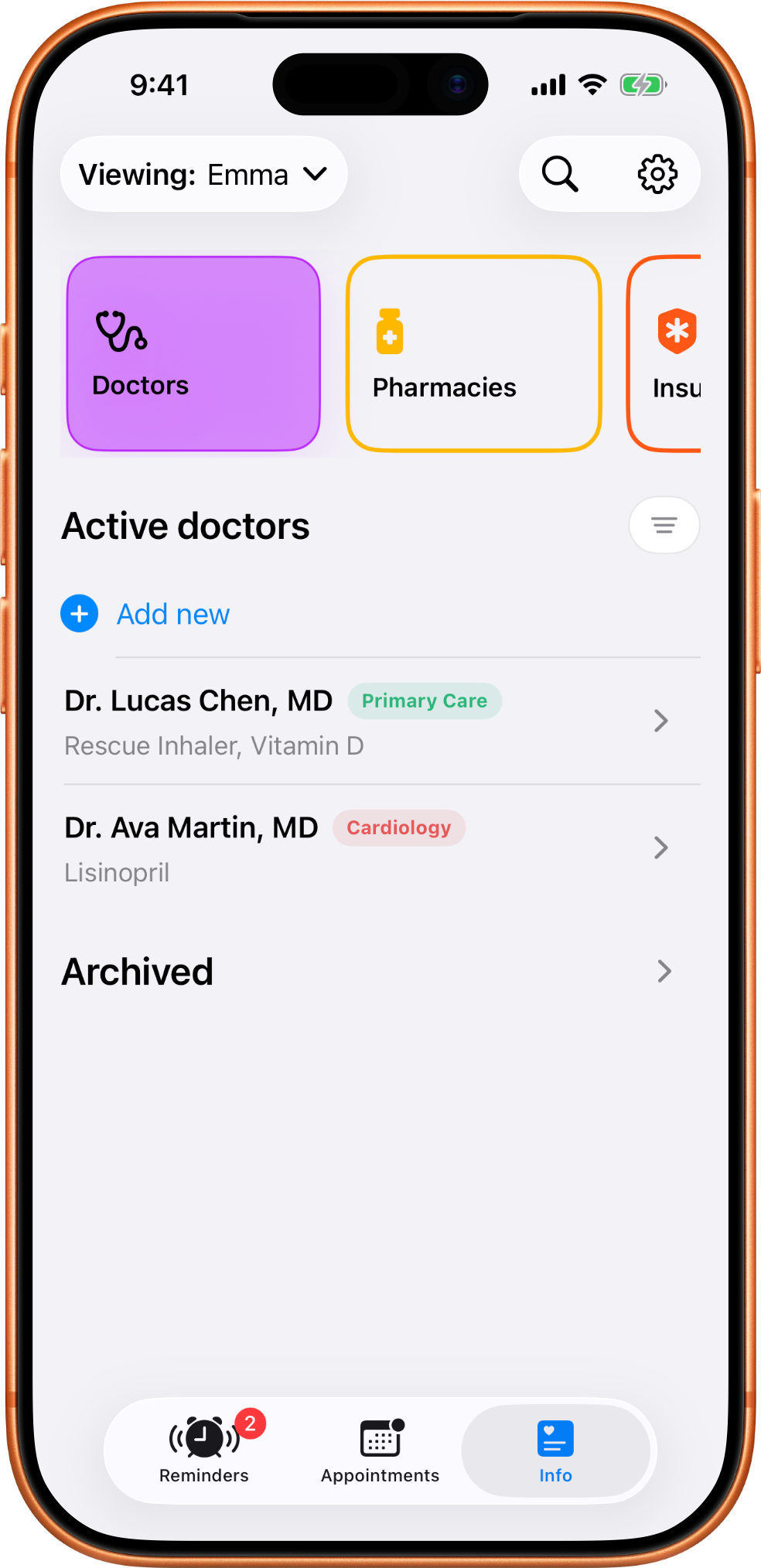
MedTime doctors screen listing saved providers and related care information for the selected profile.

Keep pharmacy details ready

Pharmacy records are saved by profile so the right contact info is already there when it is needed.
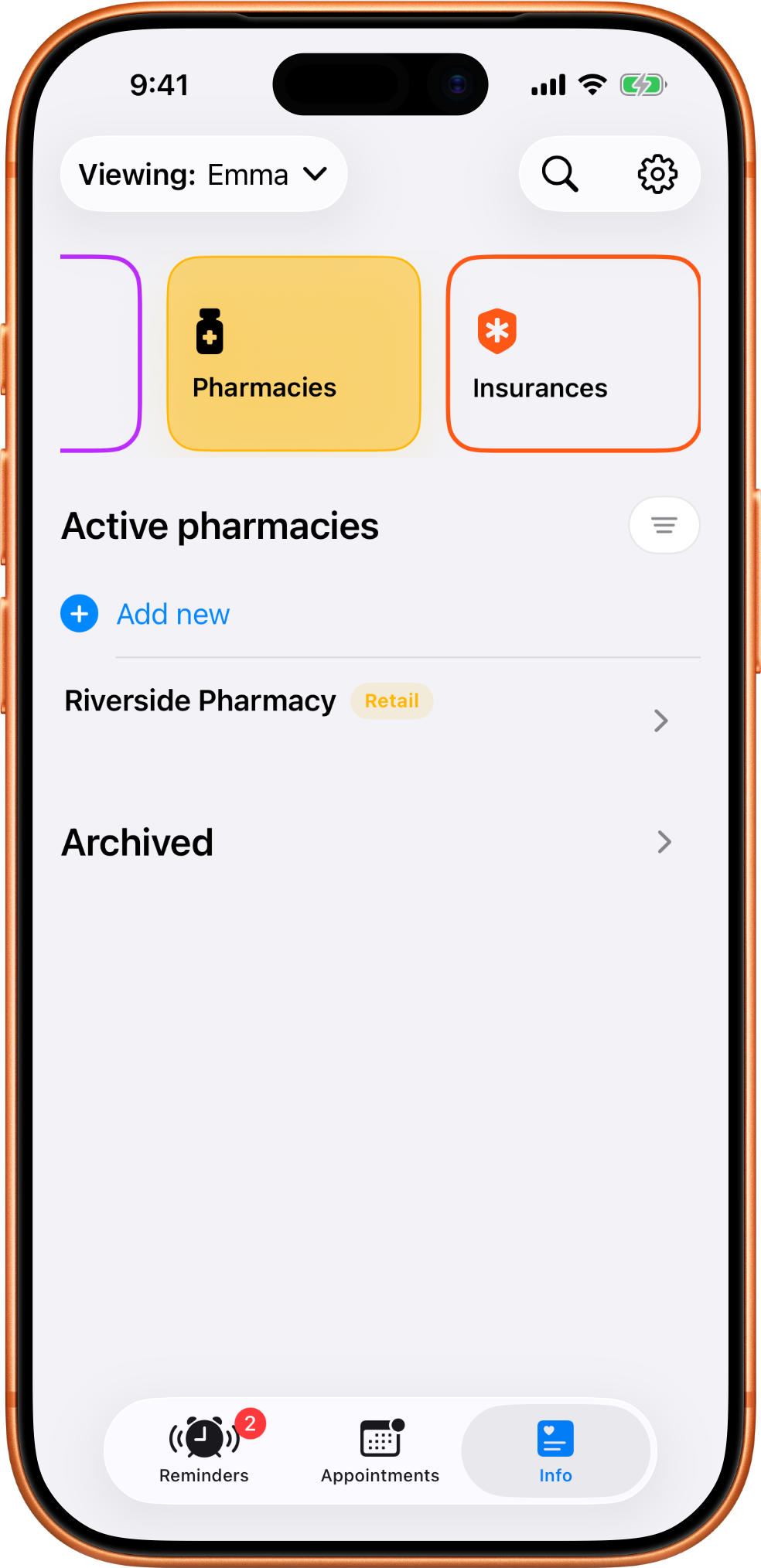
MedTime pharmacies screen showing a saved pharmacy contact for the current profile.

Store insurance details by person

Insurance records live with the profile instead of being scattered across notes or screenshots.
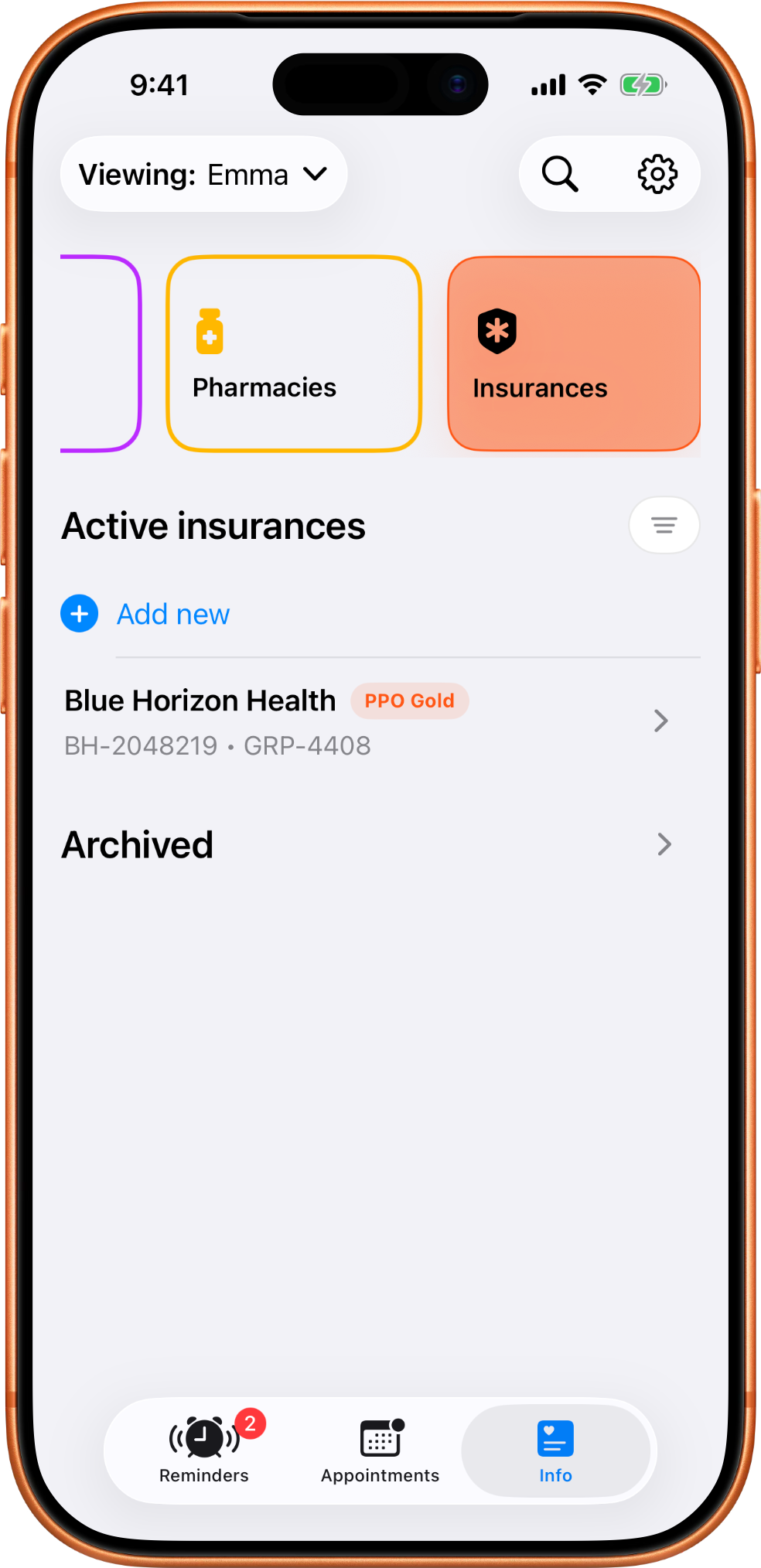
MedTime insurance screen showing a saved insurance record attached to the selected profile.

Search across saved details

Search helps you find medication, provider, and other saved details without remembering exactly where they live.
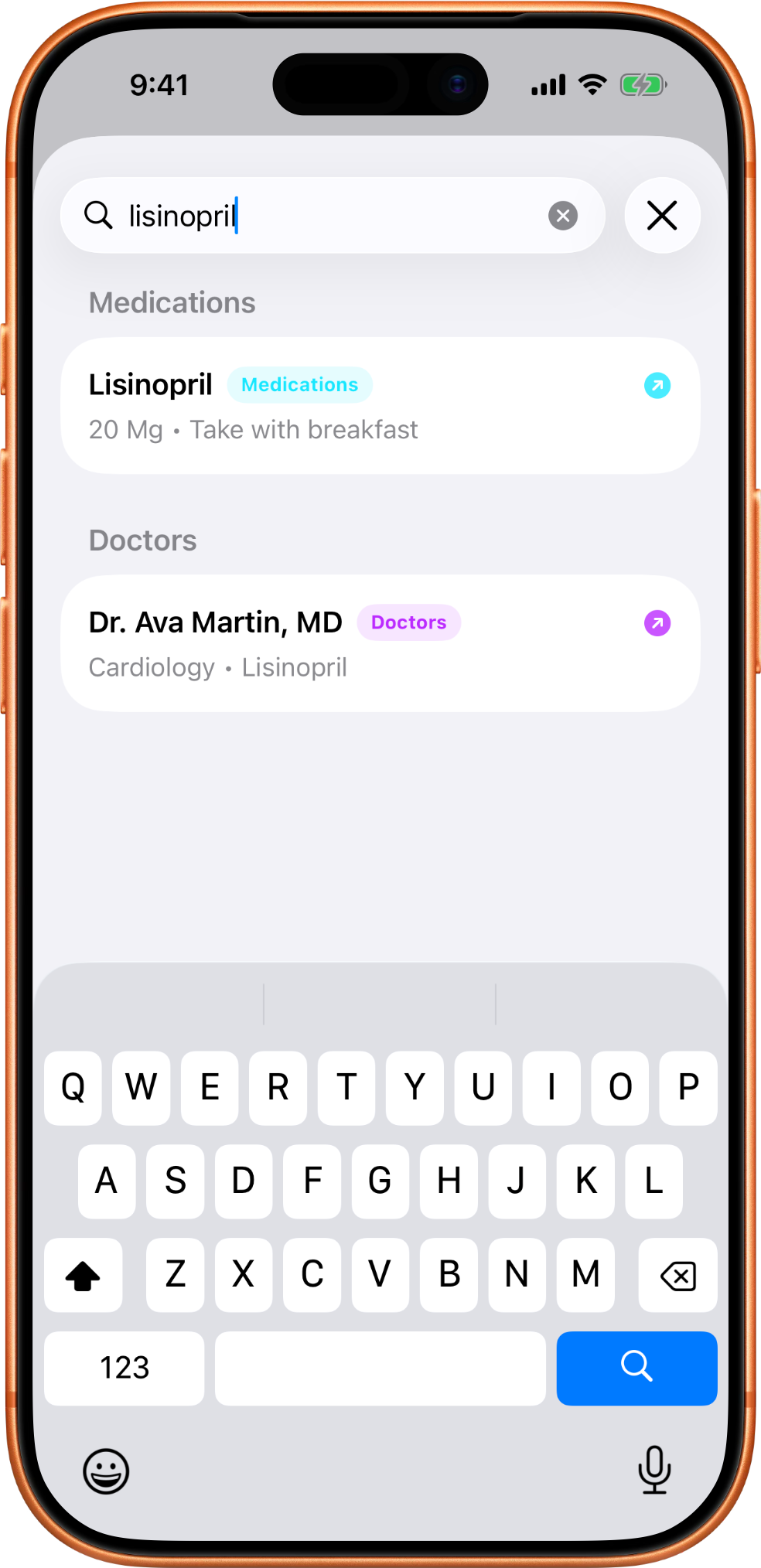
MedTime search screen showing results for a medication and related doctor record.

Use settings for privacy and data tools

Settings keeps privacy links, help links, version information, and data controls in one place.
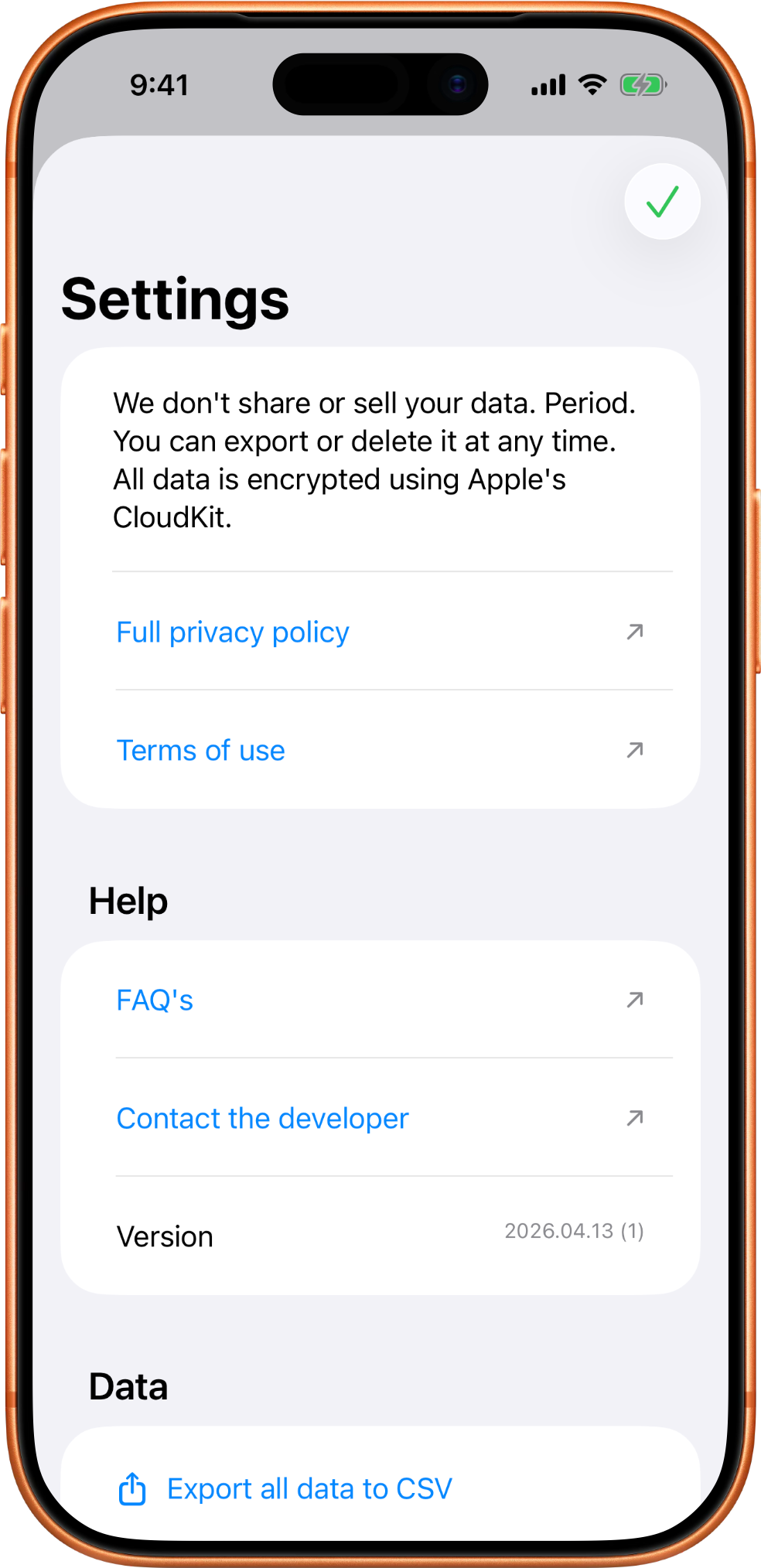
MedTime settings screen with privacy, help, version, and data sections.

Choose where backups export

The backup export path lets you choose where CSV backups should be saved.
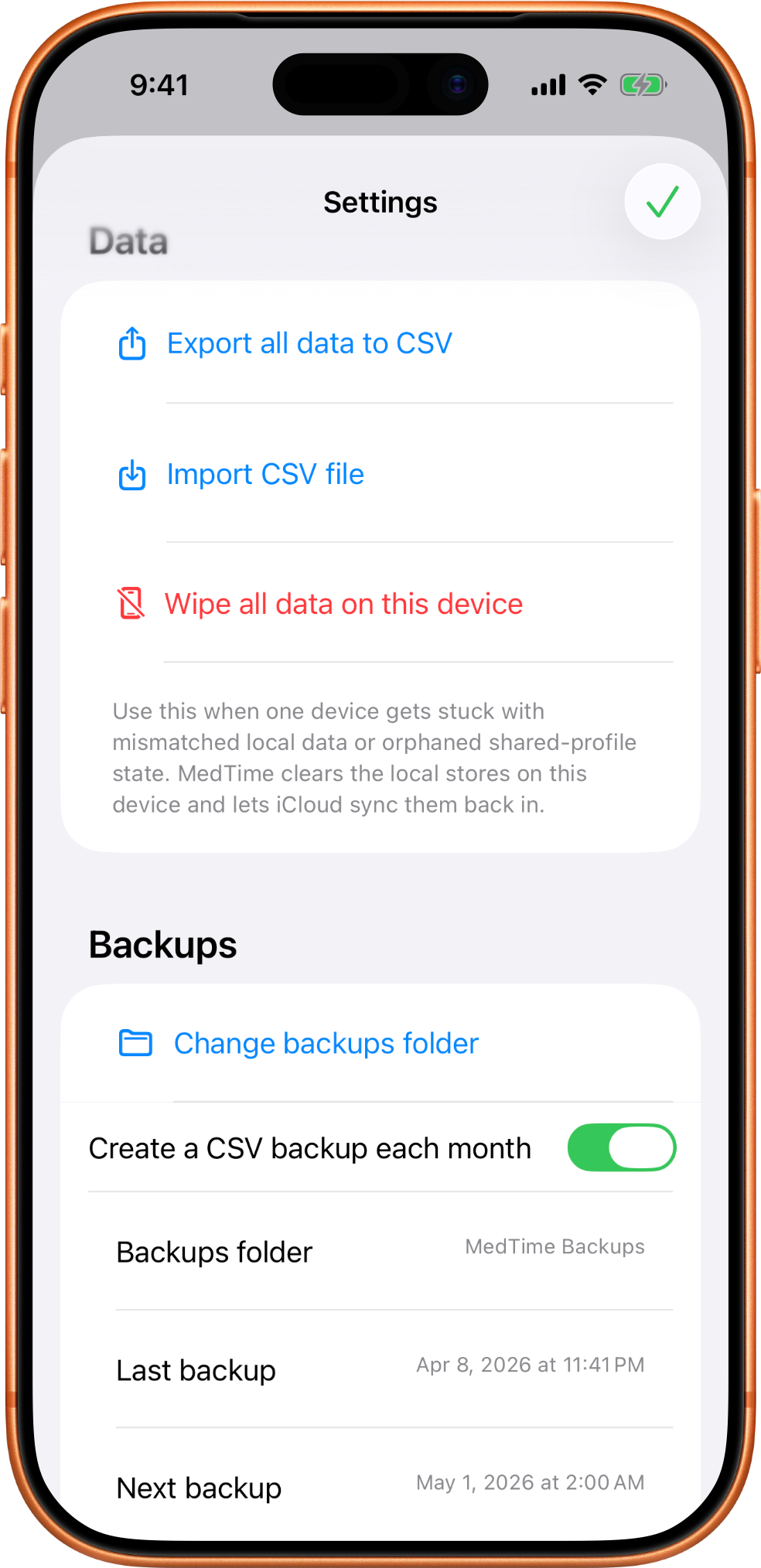
MedTime backup export settings showing the selected CSV backup folder path.

Recover recently deleted data

Recently Deleted gives you a recovery window before removed records are permanently cleared.
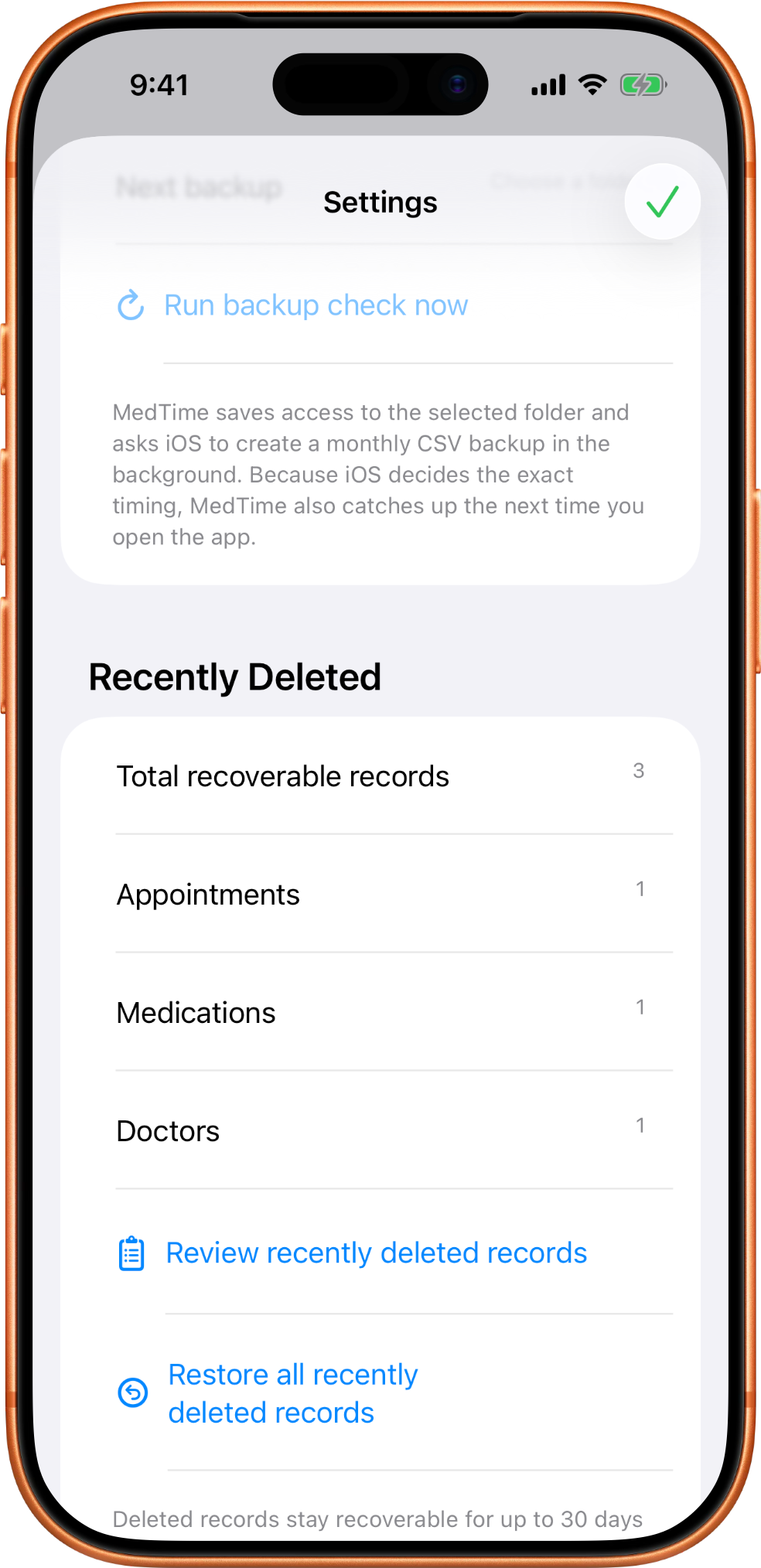
MedTime recently deleted settings area showing recoverable deleted records.